Tuesday, 23 December 2014

Using SharePoints SpellCheck Webservice with TinyMCE and AngularJS

In this post I want to demonstrate how to use SharePoint's SpellCheck webservice with the TinyMCE Richtext editor.

There are many reasons why you might choose to use the TinyMCE richtext editor over the Office365/SharePoint richtext editor. One of those reasons is if you're building a clientside app that needs a richtext editor, and you want the richtext controls to be inside the app, and not on the ribbon.

TinyMCE is a great richtext editor with good cross browser support. Among the functionality it has, it provides a way to integrate with a spell checking service.

In the example below I'm going to demonstrate how to integrate the SharePoint spellcheck.asmx webservice with the a TinyMCE richtext editor, in an AngularJS app, hosted in an Office365 or SharePoint site.

The files for this example can be downloaded from the MSDN TechNet Gallery, here: Technet Gallery. I suggest you download the files and look through the code to fully understand the example. To use the example, follow the instructions in the readme.txt file included in the zip file.

What I want to focus on here is how to call the webservice, and then how to interpret the results.

First, I'll start with a screenshot of what this looks like when it's running (the screen shots are from SharePoint 2013, but this works exactly the same with Office365):


The code to get this running looks like this  (remember, the full source can be downloaded here: TechNet Gallery):

First, the app's html file. It's pretty simple, containing a few script references and a textarea.

<!-- There's not much to the HTML file. A div that references my AngularJS controller, and then a textarea with the data-ui-tinymce attribute. -->
<div id="ng-app" data-ng-app="app" data-ng-cloak >
    <div data-ng-controller="spellCheckExampleCtrl as vm" data-ng-cloak>
        <textarea data-ui-tinymce id="eBriefTiming" data-ng-model="vm.richTextContent"></textarea>
    </div>
</div>
<!-- Load the scripts -->
<!-- XML2JSON is used to transfor the XML based response from the Spellcheck webservice to JSON -->
<script type="text/ecmascript" src="../tinymce/xml2json.js"></script>
<!-- AngularJS, Sanitize, resource and tinymce -->
<script type="text/ecmascript" src="../tinymce/angular.js"></script>
<script type="text/ecmascript" src="../tinymce/angular-sanitize.js"></script>
<script type="text/ecmascript" src="../tinymce/angular-resource.js"></script>
<script type="text/ecmascript" src="../tinymce/tinymce/tinymce.min.js"></script>
<!-- My scripts. All of this scripts are used to create the app. -->
<script type="text/ecmascript" src="../tinymce/config.tinymce.js"></script>
<script type="text/ecmascript" src="../tinymce/app.js"></script>
<script type="text/ecmascript" src="../tinymce/controllers.js"></script>
<script type="text/ecmascript" src="../tinymce/services.js"></script>

The app and controller code. Again, this is pretty simple; it's not really doing much in this simple app.

(function () {
    'use strict';
    var app = angular.module('app', [
    'ngSanitize',
    'ngResource',
    'ui.tinymce'
    ]);
    app.run();
})();

//App Controller
(function () {
    'use strict';
    //define the controller
    var controllerId = 'spellCheckExampleCtrl';
    angular.module('app').controller(controllerId, ['$scope', '$q', spellCheckExampleCtrl]);
    function spellCheckExampleCtrl($scope, $q) {
        var vm = this;
        vm.richTextContent = null;     
        init();
        function init() {           
        };
    }
})();

This next bit of code initialises the TinyMCE directive with AngularJS. The main point of interest in this code snippet is the spellchecker_callback function. Example the function, specifically how the results from the spelling webservice are interpreted.

(function () {
//pass in the remoteServices factory. This factory contains the method for querying the SharePoint Spellcheck webservice
angular.module('ui.tinymce', [])
.value('uiTinymceConfig', {})
.directive('uiTinymce', ['uiTinymceConfig', 'remoteServices', function (uiTinymceConfig, remoteServices) {
uiTinymceConfig = uiTinymceConfig || {};
var generatedIds = 0;
return {
require: 'ngModel',
priority: 10,
link: function (scope, elm, attrs, ngModel) {
var expression, options, tinyInstance;
var updateView = function () {
ngModel.$setViewValue(elm.val());
if (!scope.$root.$$phase) {
scope.$apply();
}
};
if (attrs.uiTinymce) {
expression = scope.$eval(attrs.uiTinymce);
} else {
expression = {};
}
if (expression.setup) {
var configSetup = expression.setup;
delete expression.setup;
}
// generate an ID if not present
if (!attrs.id) {
attrs.$set('id', 'uiTinymce' + generatedIds++);
}
options = {
// Update model when calling setContent (such as from the source editor popup)
setup: function (ed) {
ed.on('init', function (args) {
ngModel.$render();
ngModel.$setPristine();
});
// Update model on button click
ed.on('ExecCommand', function (e) {
ed.save();
updateView();
});
// Update model on keypress
ed.on('KeyUp', function (e) {
ed.save();
updateView();
});
// Update model on change, i.e. copy/pasted text, plugins altering content
ed.on('SetContent', function (e) {
if (!e.initial && ngModel.$viewValue !== e.content) {
ed.save();
updateView();
}
});
// Update model when an object has been resized (table, image)
ed.on('ObjectResized', function (e) {
ed.save();
updateView();
});
if (configSetup) {
configSetup(ed);
}
},
mode: 'exact',
elements: attrs.id,
inline_styles: true,
plugins: [
"advlist autolink lists link charmap hr pagebreak",
"searchreplace wordcount visualblocks visualchars code fullscreen",
"insertdatetime nonbreaking table contextmenu",
"paste textcolor spellchecker"
],
//override the default spellchecker (which, OOTB, doesn't work with SharePoint). Instead we'll use SharePoints spellcheck webservice.
//This method is documented here: http://www.tinymce.com/wiki.php/Configuration:spellchecker_callback
spellchecker_callback: function (method, text, success, failure) {
if (method == "spellcheck") {
//Call the checkSpelling method (this is a method we've defined in another file, documented in the next script block).
//This method will query the SharePoint spellcheck webservice. The query contains the full text from the
//TinyMCE richtext editor.
//When the response comes back, we need to create an array of spelling errors and suggestions
remoteServices.checkSpelling(text).then(function (data) {
var wordCollection = data;
var suggestions = [];
//***
//Check for spelling errors
//***
//Get the array of flagged words that are errors
var spellingErrors = null;
if (data.spellingErrors.SpellingErrors && data.spellingErrors.SpellingErrors.flaggedWords !== 'undefined') {
    spellingErrors = data.spellingErrors.SpellingErrors.flaggedWords.FlaggedWord;
}
//Check if an array of items was returned
if (spellingErrors instanceof Array == true) {
    for (var wi = 0; wi < spellingErrors.length; wi++) {
        var w = spellingErrors[wi];
        suggestions[w.word] = [];
    }
}
//Check if a single item was returned
else if (spellingErrors && spellingErrors.word) {
    suggestions[spellingErrors.word] = [];
}
//***
//Check for spelling suggestions
//***
//Get the array of flagged words with suggestions
var spellingSuggestions = null;
if (data.spellingSuggestions.SpellingSuggestions) {
    spellingSuggestions = data.spellingSuggestions.SpellingSuggestions;
};
//Check if an array of items was returned
if (spellingSuggestions instanceof Array == true) {
    for (var wi = 0; wi < spellingSuggestions.length; wi++) {
        var w = spellingSuggestions[wi];
        //Check if there is a single spelling suggestion, or an array of suggestions.
        //Then add it to suggestions array for the current word
        suggestions[w.word] = (w.sug.string instanceof Array == true) ? w.sug.string : [w.sug.string];
    }
}
//Check if a single item was returned
else if (spellingSuggestions && spellingSuggestions.word) {
    //Check if there is a single spelling suggestion, or an array of suggestions.
    //Then add it to suggestions array for the current word
    suggestions[spellingSuggestions.word] = (spellingSuggestions.sug.string instanceof Array == true) ? spellingSuggestions.sug.string : [spellingSuggestions.sug.string];
}
//Return the list of suggestions to the success handler.
success(suggestions);
})["catch"](function (error) {
//in my testing, failure doesn't seem to work. So I'm sending back Success with a null value.
success(null);
});
}
},
toolbar: "styleselect | bold italic | bullist numlist outdent indent | link | spellchecker",
fontsize_formats: "9pt 10pt 11pt 12pt 14pt 16pt 18pt 20pt 22pt 24pt",
menubar: true,
statusbar: false,
height: 300,
width: 620
};
angular.extend(options, uiTinymceConfig, expression);
setTimeout(function () {
tinymce.init(options);
});
ngModel.$render = function () {
if (!tinyInstance) {
tinyInstance = tinymce.get(attrs.id);
}
if (tinyInstance) {
tinyInstance.setContent(ngModel.$viewValue || '');
ngModel.$setPristine();
}
};
scope.$on('$destroy', function () {
if (!tinyInstance) { tinyInstance = tinymce.get(attrs.id); }
if (tinyInstance) {
tinyInstance.remove();
tinyInstance = null;
}
});
}
};
}]);
})();

Finally, the code for the remoteServices factory. This code is responsible for making the call to SharePoint's Spellchecker webservice.

(function () {
'use strict';
var serviceId = 'remoteServices';
angular.module('app').factory(serviceId, ['$resource','$q', remoteServices]);
function remoteServices($resource, $q) {
    var service = this;       
    init();
    //service signature
    return {           
        checkSpelling: checkSpelling
    };
    function init() {           
    }
    //This function returns a resource used to query
    //the spellcheck webservice. It contains the HTTP method,
    //headers and will transform the response from XML to JSON
    function getSpellCheckerResource() {
        return $resource('/_vti_bin/spellcheck.asmx',
        {}, {
            post: {
                method: 'POST',
                params: {
                    'op': 'SpellCheck'
                },
                headers: {
                    'Content-Type': 'text/xml; charset=UTF-8'
                },
                transformResponse: function (data) {
                    // convert the response data to JSON
                    // before returning it
                    var x2js = new X2JS();
                    var json = x2js.xml_str2json(data);
                    return json;
                }
            }
        });
    }
             
    //This is the public function the TinyMCE editor will
    //call when the check spelling button is clicked.
    //The functions takes a block of text (or words) as input
    //and returns the spellcheck results
    function checkSpelling(words) {
    //Convert an array of words into a single string
    var wordstring = "";
    for(var i = 0; i < words.length; i++)
    {
        wordstring += (words[i] + ' ');
    }          
    //build the SOAP request
    var soapData = '<?xml version="1.0" encoding="utf-8"?><soap:Envelope xmlns:xsi="http://www.w3.org/2001/XMLSchema-instance" xmlns:xsd="http://www.w3.org/2001/XMLSchema" xmlns:soap="http://schemas.xmlsoap.org/soap/envelope/"><soap:Body><SpellCheck xmlns="http://schemas.microsoft.com/sharepoint/publishing/spelling/"><chunksToSpell><string>' + wordstring + '</string></chunksToSpell><declaredLanguage>3081</declaredLanguage><useLad>false</useLad></SpellCheck></soap:Body></soap:Envelope>'
    //Get the resource (defined in a function above) used to query the webservice
    var resource = getSpellCheckerResource();
    var deferred = $q.defer();
    //Post the data (the string of words) to the webservice 
    //and wait for a response!
    resource.post(soapData, function (data) {
        //successful callback          
        deferred.resolve(data.Envelope.Body.SpellCheckResponse.SpellCheckResult);
    }, function (error) {
        //error callback
        var message = 'Failed to queried the SharePoint SpellCheck webservice. Error: ' + error.message;
        deferred.reject(message);
    });
        return deferred.promise;
    }
}
})();

The screenshots below (taken from Fiddler and Chrome) show the request being sent and the data that is received back.

Request.


Response (showing the errors).
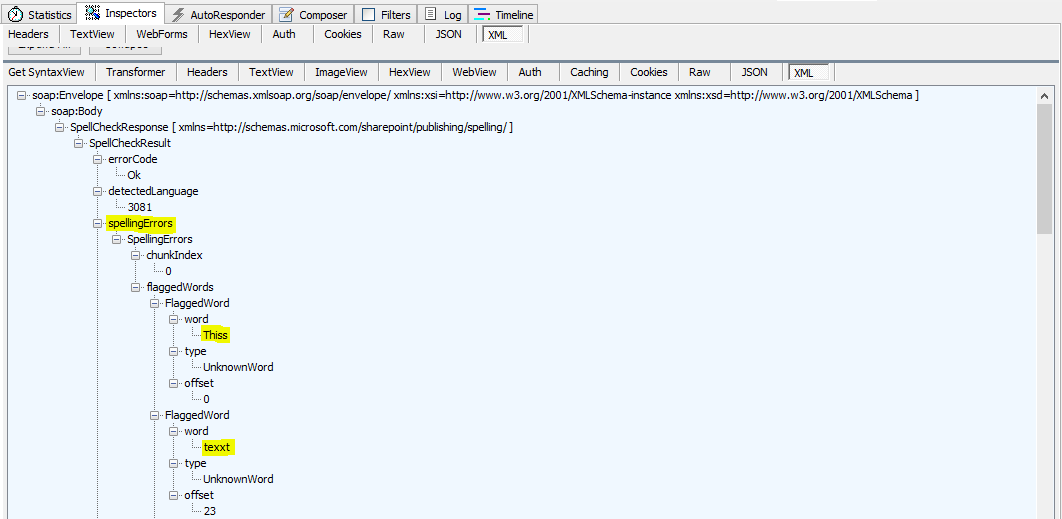

Response (showing the suggestions).


You can inspect the array of spelling suggestions and errors received back from the webservice by putting a break in the code.


Hpapy Spallnig!

References:

Tuesday, 16 December 2014

Provisioning a new Nintex Workflow Content Database using PowerShell

Scenario:

I need to create a new Nintex Workflow Content database and associate it with a new SharePoint Site Collection as part of a PowerShell based solution provisioning process.

Problem:

There is no obvious way to do this; there are no methods in the web api, and nwadmin doesn't have any operations that remotely resemble adding a new content database.

Approach:

There are two ASPX pages in SharePoint Central Admin that allow administrators to create new Nintex Workflow Content databases and associate those databases to Site Collections. Since these pages must have code behind them, I thought I'd open up the Nintex dll's (using ILSpy) and see if I could find the code responsible for the functionality on these pages.

This approach worked perfectly, and it turned out that I only needed a few lines of PowerShell to create my new database and associated it with a Site Collection.

The caveat is, the PowerShell needs to be run from a PowerShell command prompt on the Server, so it won't work if you're solution is being built for Office 365, or if you need to use all client side (PowerShell) code.

Solution / Code:

#Load all the assemblies that we need to use            
[System.Reflection.Assembly]::LoadWithPartialName('Microsoft.SharePoint.Administration') | Out-Null            
[System.Reflection.Assembly]::LoadWithPartialName('Nintex.Workflow') | Out-Null            
[System.Reflection.Assembly]::LoadWithPartialName('Nintex.Workflow.Administration') | Out-Null            
[System.Reflection.Assembly]::LoadWithPartialName('Nintex.Workflow.Common') | Out-Null
[System.Reflection.Assembly]::LoadWithPartialName('Nintex.Workflow.ContentDbMappingCollection') | Out-Null            
            
#Add the SharePoint PowerShell snapin (in case it's not already loaded)            
if(-not(Get-PSSnapin | Where-Object {$_.Name -eq "Microsoft.SharePoint.PowerShell"}))
{
 Add-PSSnapin Microsoft.SharePoint.PowerShell;            
}            
            
$NintextDatabaseName = "Nintex_Flintstones"            
$Url = "http://portaldev.bi.local/sites/flintstones";            
#Get the SharePoint Site that you want to create a separate Nintex Content database for.            
$site = Get-SPSite $Url            
#Get the content database for the SharePoint Site            
$siteContentDb = Get-SPContentDatabase -Site $site            
#Get the top level farm object. We'll use this to get access to the farms config database server             
#Note: The Microsoft.SharePoint.Administration.SPGlobalAdmin class is deprecated. 
#I'm using it here, only becuase I'm trying to keep my PowerShell code as close 
#as possible to the code used in the Nintex admin pages            
$globalAdmin = New-Object Microsoft.SharePoint.Administration.SPGlobalAdmin            
#Get the Nintext Configuration Database            
$configDatabase = [Nintex.Workflow.Administration.ConfigurationDatabase]::GetConfigurationDatabase();            
#Check if there is an existing Nintex Content database with the name we want to use            
$contentDatabase = $configDatabase.ContentDatabases.FindByDatabaseAndServerName($globalAdmin.ConfigDatabaseServer,$NintextDatabaseName);            
#If the an existing database with the same name we want to use wasn't found, then we'll add it.             
if($contentDatabase -eq $null)            
{            
    Write-Host "The Nintex Content Database $NintextDatabaseName does not exist." -f Yellow;            
    Write-Host "Creating a new Nintex Content Database with the following name: $NintextDatabaseName" -f Yellow;            
    #Create a SQL connections string            
    $connectionString = ([String]::Format("Data Source={0};Initial Catalog={1};Integrated Security=SSPI;", $globalAdmin.ConfigDatabaseServer,$NintextDatabaseName))            
    #Initialise a new DatabaseAttacher object using the connection string            
    $dbAttacher = New-Object Nintex.Workflow.Administration.DatabaseAttacher($connectionString, 0)            
    #Set properties on the DatabaseAttacher object.             
    $dbAttacher.AttachOptions.CreateNewDatabase = $true;            
    $dbAttacher.AttachOptions.ProvideAllWebApplicationsAccess = $true;            
    $dbAttacher.AttachOptions.IncludeStorageRecordStep = $false;            
    #Finally, call the Attach() method to create and attach the 
    #database to the SharePoint farm.             
    $attachResult = $dbAttacher.Attach();            
    #Handle the success and failure scenarios            
    if($attachResult.CanContinue)            
    {            
        Write-Host "Successfully created a new Nintex Content Database with the following name: $NintextDatabaseName" -f Green;            
        if($attachResult.Warnings)            
        {            
            Write-Host "The following warnings were logged via creating the Nintex Content Database:" -f DarkYellow            
            Write-Host $($attachResult.Warnings) -f DarkYellow            
        }            
        #Get the new database we just created             
        $contentDatabase = $configDatabase.ContentDatabases.FindByDatabaseAndServerName($globalAdmin.ConfigDatabaseServer,$NintextDatabaseName);                    
    }            
    else            
    {            
        Write-Host "Error creating the Nintex Content Database." -f Red            
        Write-Host $($attachResult.Errors) -f Red            
        return;            
    }            
}            
else            
{            
    Write-Host "The Nintex Content Database $NintextDatabaseName already exists." -f Green;            
}            
            
#If the database was successfully created (or already existed), 
#update the mappings to associate the Nintex Content database 
#with the SharePoint Site Collection.            
if($contentDatabase -ne $null)            
{            
    Write-Host "Updating the Nintex Content Database mappings for site: $($site.Url)" -f Yellow;            
    #Create a new ContentDbMapping object, and get the current content 
    #database mappings for the Site Collection            
    [Nintex.Workflow.ContentDbMapping]$contentDbMapping;            
    $contentDbMapping = [Nintex.Workflow.ContentDbMappingCollection]::ContentDbMappings.GetContentDbMappingForSPContentDb($siteContentDb.Id)            
    #if there are no content database mappings found, initialise a new 
    #ContentDatabaseMapping object            
    if($contentDbMapping -eq $null)            
    {            
        $contentDbMapping = New-Object Nintex.Workflow.ContentDbMapping            
    }            
    #Set the properties of the ContentDatabaseMapping object to associate
    #the Nintex Content Database with the Site Collection            
    $contentDbMapping.SPContentDbId = $siteContentDb.Id;            
    $contentDbMapping.NWContentDbId = $contentDatabase.DatabaseId;            
    #Call the CreateOrUpdate() method to save the changes            
    $contentDbMapping.CreateOrUpdate();                
    Write-Host "Successfully added a Nintex Content Database mapping for site: $($site.Url)" -f Green;            
}            


Sunday, 23 November 2014

Quick and Dirty: Parsing logs with PowerShell

Recently I needed to parse a large number of SharePoint log files looking for particular strings. The strings I was looking for indicted errors that required further investigation.

There are a number of tools for doing this sort of activity. In this case, I choose to use PowerShell, because of the speed with which I could accomplish this task. It took me less than 5 minutes to write and test the script. And it saved me a lot of time parsing the log files!

Using the PowerShell script, I can quickly change my queries, re-run my queries, export results, and most importantly, query large numbers of log files quickly.

Here's the code I used.

# Set the path to the log files            
$path = "C:\Temp\Logs"            
# Get a collection of all the log files (anything ending in .log)            
$files = Get-ChildItem -Path $path -Filter "*.log"            
# Pipe the collection of log files to the ForEach-Object cmdlet             
# (the alias of ForEach-Object is %)            
$files | %{            
    # Call the OpenText method, to return a System.IO.StreamReader object            
    $file = $_.OpenText();            
    # Record the current line number (to use in the console output)            
    $lineNum = 1;            
    Write-Host "Checking file"$_.Name -f Yellow;            
    # Use the EndOfStream method (which returns true when you have reach the end            
    # of the file), read each line of the file.              
    while($file.EndOfStream -ne $true)            
    {            
        # Read the next line in the file            
        $line = $file.ReadLine();                    
        if($line -ne $null)            
        {            
            # Use the String ToLower and Contains methods to check for occurances            
            # of the strings (or values) you need to check the file for            
            # In this example, I'm looking for any instances of the text "error" or "exception"            
            if($line.ToLower().Contains("error") -or $line.ToLower().Contains("exception"))            
            {            
                # If the current lines contains a match, write the line number            
                # and line text out to the console            
                Write-Host "Line: $lineNum " -NoNewline -ForegroundColor Green;            
                Write-Host $line -f Red;            
            }            
        }             
        # Increment the line number            
        $lineNum++;                   
    }            
}            


Wednesday, 29 October 2014

Unexpected Token when Parsing a JSON String Retrieved from a SharePoint Listitem

I'm working on a SharePoint based solution at moment, which uses AngularJS and REST calls to build the interface (UI).

In certain scenarios I need to save JSON strings into list item properties. This is easy enough. I can call JSON.stringify(myobject) to create a string representation of the JavaScript object, and then save the value to SharePoint using a REST call.

The problem is, when I retrieve the value back from SharePoint, certain characters are encoded using ISO/IEC 8859-1 encoding. For example, "{" becomes &#123;

Example: see the eBriefRecommendationsForApproval property below


When I make a call to JSON.parse(myjsonstring), I get the error: "Error retrieving noting data  SyntaxError: Unexpected token & at Object.parse (native)"

A colleague suggested a method he'd used before to get around a similar issue, simply replacing the characters.

I'm not sure if this is the "correct" approach or not, but it works! I ended out with the following function to parse JSON strings that are returned from SharePoint,.

function parseJSONString(value) {
try{
var convertedValue = value.replace(/&quot;/g,'"')
.replace(/&#123;/g,'{')
.replace(/&#125;/g,'}')
.replace(/&#58;/g,':');
return JSON.parse(convertedValue);
}catch(e){
return null;
}
}


Thursday, 16 October 2014

Using the SharePoint Client-Side People Picker with an AngularJS SPA

[UPDATED]: I've written an updated post for this that include some feature enhancements and fixes. You can read that post here: (Updated) Using the Microsoft Client-side People Picker as an AngularJS Directive

If you're building a client-side SharePoint app using AngularJS (or any other JavaScript framework), and need a people picker, then using Microsoft's Client-Side People Picker is great option.

Resolving a user with the People Picker

A selected user in the people picker


The ClientSidePeoplePicker is Microsoft client side people picker control. It's built using HTML and JavaScript, is pretty easy to get working, and is generally well documented. E.g. How to: Use the client-side People Picker control in SharePoint-hosted apps

Microsoft: "The picker and its functionality are defined in the clientforms.js, clientpeoplepicker.js, and autofill.js script files, which are located in the %ProgramFiles%\Common Files\Microsoft Shared\web server extensions\15\TEMPLATE\LAYOUTS folder on the server."

In this post I want to demonstrate how to resolve the SharePoint user ID for a selected user and use it to update the data model in an AngularJS spa using a REST call.

To update a people field in a SharePoint list using a REST call, you need the SharePoint SPUser.ID value for the selected user. Unfortunately, the clientside people picker doesn't contain the userid of a resolved user (I guess for good reason; if it did, it would have to call EnsureUser on the web for every user in the people picker that is resolved).

So the challenge is, how to get the SPUser.ID for the selected user?

When a user is resolve by the client side people picker, the claims identity of the user is returned. The people picker also fires an event, OnUserResolvedClientScript, after each user in the picker is resolved. This event is the key to getting that user ID!

Using the OnUserResolvedClientScript event, all you need to do is call a function that will take the claims identity of the user, and use it to perform an EnsureUser on the web. Calling EnsureUser on the SPWeb will add the user to the SharePoint User Information List (of the site collection), and return the SPUser object.

The sequence of actions is:

1. Client selects a user in the people picker
2. The people picker resolves each selected user, and fires the OnUserResolvedClientScript event each time a user is resolved
3. Each time the OnUserResolvedClientScript event is raised, the custom function (that you need to write) to ensure the user is called.
4. This function disables saving the model, and then does a quick REST call to EnsureUser.
5. When the REST call returns, you get the selected users ID back, and can use this to update the data model.
6. Saving the model is re-enabled.

The first step is to create a function that calls EnsureUser on the web. In this example, I'm using the AngularJS Resource module to make a REST call to EnsureUser:

// Define the ensureuser model
var ebc = ebc || {};
ebc.models = ebc.models || {};
ebc.models.ensureUser = function () {
    this.logonName = null;
}
// This example uses AngularJS resource service for iteracting with RESTful services
// This function defines the REST endpoint for EnsureUser.
function getUserIdResource() {
    return $resource('../../../_api/web/ensureuser',
        {}, {
            post: {
                method: 'POST',
                params: {
                },
                headers: {
                    'Accept': 'application/json;odata=verbose;',
                    'Content-Type': 'application/json;odata=verbose;',
                    'X-RequestDigest': service.securityValidation
                }
            }
        });
}
  
// the getUser function takes a claims formatted user string
// and makes a POST to ensureUser to check whether the specified login name
// belongs to a valid user in the site.
// If the user doesn't exist, adds the user to the site.
// The specified SPUser object is returned, containing the users SharePoint user ID.
// The user ID can then be used with the data model to update the list item
function getUser(claimsUserName) {    
    var userModel = new ebc.models.ensureUser();
    userModel.logonName = claimsUserName;
    var resource = getUserIdResource();
    var deferred = $q.defer();
    resource.post(userModel, function (data) {
        // successful callback 
        // data.d contains the JSON representation of the SPUser
        deferred.resolve(data.d);
    }, function (error) {
        // error callback
        deferred.reject(error);
    });
    return deferred.promise;
}

The second step is to create a function that can be called by the people picker each time a user is resolved. This function will be responsible for calling the function to ensure the user, and updating the data model when that function returns the selected users user id.

// This function is called by the people picker each time a user is resolved.
// The property parameter contains a string value that represents the property
// on the data model that needs to be updated with value of the SPUser ID on
function setUserIdFromPickerChoice(userKey, property, isMultiValued) {
    if (userKey && userKey[0] && property) {
        //disable saving the "rec" data model
        rec.saveDisabled = true;
        //call the getUser function
        datacontext.getUser(userKey[0].Key)
            .then(function (data) {
                if (data.Id) {
                    // "item" represents the SharePoint list item model property of the data model.
                    // check that the property "property" exists on the data model.
                    if (rec.item.hasOwnProperty(property)) {
                        // set the value of the property
                        rec.item[property] = data.Id;
                    }
                }
                // re-enable saving
                rec.saveDisabled = false;
                // log
                common.logger.logSuccess('Set user id.', null, controllerId);
            })
            .catch(function (error) {
                // log the error
                common.logger.logError('error retrieving request details data', error, controllerId);
            });
    }
    else if (property && rec.item) {
        //If the userKey doesn't contain a value, clear the value from the data model
        if (rec.item.hasOwnProperty(property)) {
            // "item" represents the SharePoint list item model property of the data model.
            // Use the the "property" value
            rec.item[property] = null;
        }
    }
}

You can see the POST and RESPONSE returned from the call to EnsureUser using Fiddler;

POST to /_api/web/ensureuser


RESPONSE from /_api/web/ensureuser


The third step is to initialise the people picker, and attach our function to the OnUserResolvedClientScript function

function initializePeoplePicker(peoplePickerElementId, displayName, userName, modelProperty, isMultiValued) {
    var schema = {};
    schema['PrincipalAccountType'] = 'User';
    schema['SearchPrincipalSource'] = 15;
    schema['ResolvePrincipalSource'] = 15;
    schema['AllowMultipleValues'] = isMultiValued;
    schema['MaximumEntitySuggestions'] = 50;
    schema['Width'] = '270px';
    schema['OnUserResolvedClientScript'] = function (elementId, userKey) {
        //Check if the people picker is intialised
        if (peoplePickerInitalised) {
            // If the picker is initialised, then call the 
            // setUserIdFromPickerChoice method.
            // This method will ensure the user on the web, 
            // and then update the data model 
            // Note that the modelProperty variable, is passed into this 
            // function. This variable is passed into the initalizePeoplePicker
            // function, and then used with the setUserIdFromPickerChoice function
            // to update the data model property with the selected users userid  
            setUserIdFromPickerChoice(userKey, modelProperty, isMultiValued);
        }
    }
    // If the userName property contains a value,
    //then populate the people picker with the user passed to the function
    var users = null;
    if (userName != null) {
        users = new Array(1);
        var user = new Object();
        user.AutoFillDisplayText = displayName;
        user.AutoFillKey = userName;
        user.AutoFillSubDisplayText = "";
        user.DisplayText = displayName;
        user.EntityType = "User";
        user.IsResolved = true;
        user.Key = userName;
        user.ProviderDisplayName = "Tenant";
        user.ProviderName = "Tenant";
        user.Resolved = true;
        users[0] = user;
    }
    // Call SPClientPeoplePicker_InitStandaloneControlWrapper to initialise the control
    SPClientPeoplePicker_InitStandaloneControlWrapper(peoplePickerElementId, users, schema);
}

Once you have this done, you're ready to go!

The screen shot below (from Fiddler) shows the people pickers request and the JSON returned, containing the users claims identity. This is followed by the call to EnsureUser, from the method we've attached to the people pickers OnUserResolvedClientScript event.


I'll be posting a full working example on the MSDN Gallery soon!


Monday, 6 October 2014

PowerShell: Array to a Comma Separated String in One LIne

Today I got asked how to take the output of a list of servers, append the domain name to each server, and then output the list as a single comma separated string.

After trying to achieve it with one single short line of PowerShell, I settled on three lines of code. I then got chastised by My Crazy Brazilian Colleague (MCBC) for always writing too many one liners in my scripts! Apparently too many condensed, piped one liners, make a PowerShell script hard to read. After all, a PowerShell script isn't meant to be a minimised JavaScript file!

Now while I agree with MCBC in principal, failing to pipe (and append text to) all the strings in the array, into a single comma seperated string object, bugged me for the rest of the day!

Determined to prove the point, I came up with this. My array to string one liner, that goes against readability!

First, my formula!

$a | %{$v += ($(if($v){", "}) + $_ + $t)}

That definitely isn't readable, so here's an example (the single line of code, obviously being the middle line!)

#Define an array of text values            
$a = @("orange","apple","kiwi","banana")
#One line of PowerShell to output the values into a single comma separated string, appending "'s are delicious" to each string            
$a | %{$v += ($(if($v){", "}) + $_ + "'s are delicious")}
#Print the value            
$v


In our scenario today, we took a list of servers from a SharePoint farm, and then piped the server names into some other command (which I don't care to recall!). Had I thought of this during the day, instead of on the train during the commute home, the PowerShell would have looked this:

#Get the list of servers from SharePoint            
$sl = (Get-SPFarm).Servers | Select Name            
#For each server, add the domain name            
$sl | %{$v += ($(if($v){","}) + $_.Name + "." + $env:USERDNSDOMAIN)}            
#Print the array            
$v


And finally, for those unclear on what is happening, here's a pict-o-gram!


Sorry MCBC, I couldn't resist!