Showing posts with label Office365. Show all posts

Tuesday, 28 April 2015

Using the Client-side Taxonomy Picker Control in an AngularJS directive on Office365

In my last post I wrote about using the Microsoft client-side people picker within an AngularJS directive.

In this post I want to take a look at using the client-side taxonomy picker wrapped up as an AngularJS directive, in an app running on an Officer 365 site. In a subsequent post I'll expand on the how the code works, but this post is just intended to give a quick overview of it.

You can download the code from Github here: https://github.com/matthewyarlett/AngularJS-Client-side-Taxonomy-Picker-Directive

The Taxonomy Picker control comes from the Office 365 Developer Patterns and Practises site.

The files for this app are uploaded to a folder on the root of the site. The apps parent file, app.html, is added to a page via Content Editor Webpart.

The app looks like this:


To use the directive, follow these basic steps.

1. Add the CSS and script references to your apps html page.

The Taxonomy Picker control comes with it's own CSS, so you need to include this.

<link href="../angularjs-taxonomy/Styles/taxonomypickercontrol.css" rel="stylesheet" />

You need to add a reference to the JS file the directive is declared in, as well as all of the Microsoft Scripts that the SharePoint Taxonomy Picker requires, as well as the scripts the app requires.

<!-- Load the constant variables -->
<script type="text/ecmascript" src="../angularjs-taxonomy/config/config.constants.js"></script>
<script type="text/ecmascript" src="../angularjs-taxonomy/models/models.js"></script>
<!-- Load third party scripts -->
<!-- AngularJS, Sanitize, resource -->
<script type="text/ecmascript" src="../angularjs-taxonomy/scripts/angular.min.js"></script>
<script type="text/ecmascript" src="../angularjs-taxonomy/scripts/angular-sanitize.min.js"></script>
<script type="text/ecmascript" src="../angularjs-taxonomy/scripts/angular-resource.min.js"></script>
<script type="text/ecmascript" src="../angularjs-taxonomy/scripts/angular-route.min.js"></script>
<script type="text/ecmascript" src="../angularjs-taxonomy/scripts/ui-bootstrap.js"></script>
<script type="text/ecmascript" src="../angularjs-taxonomy/scripts/jquery-1.9.1.min.js"></script>
<script type="text/ecmascript" src="../angularjs-taxonomy/scripts/taxonomypickercontrol.js"></script>
<!-- All of this scripts are used to create the app. -->
<script type="text/ecmascript" src="../angularjs-taxonomy/app.js"></script>
<script type="text/ecmascript" src="../angularjs-taxonomy/config/config.js"></script>
<script type="text/ecmascript" src="../angularjs-taxonomy/config/config.taxonomy.js"></script>
<script type="text/ecmascript" src="../angularjs-taxonomy/common/common.js"></script>
<script type="text/ecmascript" src="../angularjs-taxonomy/common/logging.js"></script>
<script type="text/ecmascript" src="../angularjs-taxonomy/controllers/controllers.js"></script>

2. Add the directive as a dependency to your app.

(function () {
    'use strict';        
    var app = angular.module('app', [
      //inject other Angular Modules 
      'ngSanitize',
      'ngResource', 
      'ui.bootstrap',
      //add the tax picker directive
      'ui.TaxonomyPicker',
      //inject App modules
      'common'
    ]);
})();

3. Add the directive to the page (you can add multiple instances of it).

When add the directive, it has several attributes that can be set to control the behaviour of the taxonomy picker.

Most aren't mandatory, but you must add the data model (via ng-Model), and you must add the pp-ready-to-load attribute (which tells the directive the data model has updated, and is ready to be used).

Possible attributes and they're values
AttributePossible valuesDefault valueRequired?
data-ng-modelAn array, containing a list of terms, in the following format:

var termsArray = [{ 'Name': object.TermLabel, 'Id': object.TermGuid}]
nullYes (you must supply a model to the data-n-model attribute, but it contain a null value)
data-pp-ready-to-loadtrue | falsefalseYes (the taxonomy picker will not render until this value is set to true)
data-pp-is-multi-valuedtrue | falsefalseNo
data-pp-widthAny numerical value, followed by 'px'220pxNo
data-pp-termsetidThe GUID of the termset.
E.g.
a5bd4ff2-2823-4ea2-8dd6-2d02c845493b
nullNo
data-pp-is-hashtagstrue | falsefalseNo
data-pp-is-keywordstrue | falsefalseNo

An example of adding a the taxonomy picker that references a termset;


<div ui-Taxonomy ng-model="vm.terms" pp-ready-to-load="{{vm.loadTaxonomyPickers}}" pp-termsetid="a5bd4ff2-2823-4ea2-8dd6-2d02c845493b" pp-is-multi-valued="{{true}}" id="taxPickerGeography" ></div>

An example of adding a the taxonomy picker that references the hashtags termset;


<div ui-Taxonomy ng-model="vm.hashtags" pp-ready-to-load="{{vm.loadTaxonomyPickers}}" pp-is-hashtags="{{true}}" pp-is-multi-valued="{{false}}" id="taxPickerHashtags" ></div>

An example of adding a the taxonomy picker that references the keywords termset;


<div ui-Taxonomy ng-model="vm.keywords" pp-ready-to-load="{{vm.loadTaxonomyPickers}}" pp-is-keywords="{{true}}" pp-is-multi-valued="{{true}}" id="taxPickerKeywords" ></div>

4. Load the data for the model.

Before initialising the directive (via changing the value of the property used in the data-pp-ready-to-load attribute to true), ensure you up the data model used for the taxonomy picker with the current data (if any).

For example, you might perform a REST call to get the current values in a list item. You would then create the model for the taxonomy picker when data from the REST call is returned.

After updating the data in the taxonomy pickers model, you would then change the value of the property used in the data-pp-ready-to-load attribute to true.

The code below shows an example of doing this.


//App Controller
(function () {
   'use strict';
   var controllerId = 'appCtrlr';
   angular.module('app').controller(controllerId, ['$scope', appCtrlr]);

   function appCtrlr($scope) {
      var vm = this;   
      vm.data = [];    
      vm.context = null;
      vm.terms = [];
      //The data model for the taxonomy picker requires an array of values. Each value 
      //represents a term, and has the Id and Name properties. The Id property takes the 
      //terms TermGuid and the Name property correlates to the terms Label property.       
      vm.terms = [{Id:"dc146209-c1b2-697e-c0e2-9259ba19e750",Name:"Failed Inspection"}];
      vm.keywords = [];
      vm.hashtags = [];
      vm.loadTaxonomyPickers = true;
      init();
      function init() {   
         //init code.
         //e.g. get data via REST and set the data model.                   
      }
   }
})();


As a side note, when you perform a REST call to Office365 or SharePoint, for a taxonomy
field, the data comes back as an object that has the TermGuid and Label properties, as seen in the following screen capture from Fiddler:


Internally, the Microsoft Client-side Taxonomy control requires the field properties as Id and Name,
which is why we format the input object with those properties above.

However, for the sake of usability, you can also pass in the raw value from a REST call. In this case, the init function might look like this (no formatting of the data takes place):

function init() {   
   getData().then(function(data){
      vm.data = data;
      vm.loadTaxonomyPickers = true;
      if (!$scope.$root.$$phase) {
         $scope.$apply();
      }
   }) 
}

And the HTML for the control, might look like this (note the vm.data.tags.results object that is passed in as the model).

<div ui-Taxonomy ng-model="vm.data.Tags.results" pp-ready-to-load="{{vm.loadTaxonomyPickers}}" pp-termsetid="a5bd4ff2-2823-4ea2-8dd6-2d02c845493b" pp-is-multi-valued="{{true}}" id="taxPickerTags" ></div>

That's it - as far as initialising and using the control goes.

To use the value(s) of a the taxonomy picker directive while the page is open, simple reference the taxonomy picker model, like you would any other property within a controllers data model.

<span data-ng-repeat="r in vm.terms track by $index">
    {{r.Name}} <span style="color:BURLYWOOD;">(Path: {{r.PathOfTerm}})</span><span data-ng-if="!$last">,&nbsp;</span>
</span>

Persisting the value(s) of the a taxonomy picker control is just as easy. You use the data in the taxonomy pickers model to write back to the server.

In the example below, I have a model used in a REST call for updating a list item that has a taxonomy field. Data from the model (used by taxonomy picker directive) is formatted for the REST call. Each term in the array of terms is transformed into a term string, that can be passed to the server via the REST call.

sr.models.shipInfoModel = function (id) {
   this.Id = id ? id : -1;
   //"pa28754972f84ff7a6bf3e4762f23e23" is the hidden text field (automatically) created for the taxonomy field
   //This is the field that you need to use to update the taxonomy field via REST.
   //You need to format selected terms as GUID|Label pairs
   this.pa28754972f84ff7a6bf3e4762f23e23;
   this.__metadata = {
      type: 'SP.Data.SrShipRegisterListItem'
   };
}

function populateShipInfoModel(srcModel, tagsTerms) {
   var dstModel = new sr.models.shipInfoModel(srcModel.Id);   
   //Update the taxonomy field values 
   if(srcModel.Tags && srcModel.Tags.results){
      if(srcModel.Tags.results.length == 0){
         dstModel.pa28754972f84ff7a6bf3e4762f23e23 = '';
      }else{
         for(var i = 0; i < srcModel.Tags.results.length; i++)
         {
            var t = srcModel.Tags.results[i];
            dstModel.pa28754972f84ff7a6bf3e4762f23e23 = dstModel.pa28754972f84ff7a6bf3e4762f23e23 + ';' + t.Name + '|' + t.Id;   
         } 
      } 
   }
   dstModel.__metadata.etag = srcModel.__metadata.etag;
   dstModel.__metadata.id = srcModel.__metadata.id;
   dstModel.__metadata.uri = srcModel.__metadata.uri;
   return dstModel;
}

And that's it!

Tuesday, 23 December 2014

Using SharePoints SpellCheck Webservice with TinyMCE and AngularJS

In this post I want to demonstrate how to use SharePoint's SpellCheck webservice with the TinyMCE Richtext editor.

There are many reasons why you might choose to use the TinyMCE richtext editor over the Office365/SharePoint richtext editor. One of those reasons is if you're building a clientside app that needs a richtext editor, and you want the richtext controls to be inside the app, and not on the ribbon.

TinyMCE is a great richtext editor with good cross browser support. Among the functionality it has, it provides a way to integrate with a spell checking service.

In the example below I'm going to demonstrate how to integrate the SharePoint spellcheck.asmx webservice with the a TinyMCE richtext editor, in an AngularJS app, hosted in an Office365 or SharePoint site.

The files for this example can be downloaded from the MSDN TechNet Gallery, here: Technet Gallery. I suggest you download the files and look through the code to fully understand the example. To use the example, follow the instructions in the readme.txt file included in the zip file.

What I want to focus on here is how to call the webservice, and then how to interpret the results.

First, I'll start with a screenshot of what this looks like when it's running (the screen shots are from SharePoint 2013, but this works exactly the same with Office365):


The code to get this running looks like this  (remember, the full source can be downloaded here: TechNet Gallery):

First, the app's html file. It's pretty simple, containing a few script references and a textarea.

<!-- There's not much to the HTML file. A div that references my AngularJS controller, and then a textarea with the data-ui-tinymce attribute. -->
<div id="ng-app" data-ng-app="app" data-ng-cloak >
    <div data-ng-controller="spellCheckExampleCtrl as vm" data-ng-cloak>
        <textarea data-ui-tinymce id="eBriefTiming" data-ng-model="vm.richTextContent"></textarea>
    </div>
</div>
<!-- Load the scripts -->
<!-- XML2JSON is used to transfor the XML based response from the Spellcheck webservice to JSON -->
<script type="text/ecmascript" src="../tinymce/xml2json.js"></script>
<!-- AngularJS, Sanitize, resource and tinymce -->
<script type="text/ecmascript" src="../tinymce/angular.js"></script>
<script type="text/ecmascript" src="../tinymce/angular-sanitize.js"></script>
<script type="text/ecmascript" src="../tinymce/angular-resource.js"></script>
<script type="text/ecmascript" src="../tinymce/tinymce/tinymce.min.js"></script>
<!-- My scripts. All of this scripts are used to create the app. -->
<script type="text/ecmascript" src="../tinymce/config.tinymce.js"></script>
<script type="text/ecmascript" src="../tinymce/app.js"></script>
<script type="text/ecmascript" src="../tinymce/controllers.js"></script>
<script type="text/ecmascript" src="../tinymce/services.js"></script>

The app and controller code. Again, this is pretty simple; it's not really doing much in this simple app.

(function () {
    'use strict';
    var app = angular.module('app', [
    'ngSanitize',
    'ngResource',
    'ui.tinymce'
    ]);
    app.run();
})();

//App Controller
(function () {
    'use strict';
    //define the controller
    var controllerId = 'spellCheckExampleCtrl';
    angular.module('app').controller(controllerId, ['$scope', '$q', spellCheckExampleCtrl]);
    function spellCheckExampleCtrl($scope, $q) {
        var vm = this;
        vm.richTextContent = null;     
        init();
        function init() {           
        };
    }
})();

This next bit of code initialises the TinyMCE directive with AngularJS. The main point of interest in this code snippet is the spellchecker_callback function. Example the function, specifically how the results from the spelling webservice are interpreted.

(function () {
//pass in the remoteServices factory. This factory contains the method for querying the SharePoint Spellcheck webservice
angular.module('ui.tinymce', [])
.value('uiTinymceConfig', {})
.directive('uiTinymce', ['uiTinymceConfig', 'remoteServices', function (uiTinymceConfig, remoteServices) {
uiTinymceConfig = uiTinymceConfig || {};
var generatedIds = 0;
return {
require: 'ngModel',
priority: 10,
link: function (scope, elm, attrs, ngModel) {
var expression, options, tinyInstance;
var updateView = function () {
ngModel.$setViewValue(elm.val());
if (!scope.$root.$$phase) {
scope.$apply();
}
};
if (attrs.uiTinymce) {
expression = scope.$eval(attrs.uiTinymce);
} else {
expression = {};
}
if (expression.setup) {
var configSetup = expression.setup;
delete expression.setup;
}
// generate an ID if not present
if (!attrs.id) {
attrs.$set('id', 'uiTinymce' + generatedIds++);
}
options = {
// Update model when calling setContent (such as from the source editor popup)
setup: function (ed) {
ed.on('init', function (args) {
ngModel.$render();
ngModel.$setPristine();
});
// Update model on button click
ed.on('ExecCommand', function (e) {
ed.save();
updateView();
});
// Update model on keypress
ed.on('KeyUp', function (e) {
ed.save();
updateView();
});
// Update model on change, i.e. copy/pasted text, plugins altering content
ed.on('SetContent', function (e) {
if (!e.initial && ngModel.$viewValue !== e.content) {
ed.save();
updateView();
}
});
// Update model when an object has been resized (table, image)
ed.on('ObjectResized', function (e) {
ed.save();
updateView();
});
if (configSetup) {
configSetup(ed);
}
},
mode: 'exact',
elements: attrs.id,
inline_styles: true,
plugins: [
"advlist autolink lists link charmap hr pagebreak",
"searchreplace wordcount visualblocks visualchars code fullscreen",
"insertdatetime nonbreaking table contextmenu",
"paste textcolor spellchecker"
],
//override the default spellchecker (which, OOTB, doesn't work with SharePoint). Instead we'll use SharePoints spellcheck webservice.
//This method is documented here: http://www.tinymce.com/wiki.php/Configuration:spellchecker_callback
spellchecker_callback: function (method, text, success, failure) {
if (method == "spellcheck") {
//Call the checkSpelling method (this is a method we've defined in another file, documented in the next script block).
//This method will query the SharePoint spellcheck webservice. The query contains the full text from the
//TinyMCE richtext editor.
//When the response comes back, we need to create an array of spelling errors and suggestions
remoteServices.checkSpelling(text).then(function (data) {
var wordCollection = data;
var suggestions = [];
//***
//Check for spelling errors
//***
//Get the array of flagged words that are errors
var spellingErrors = null;
if (data.spellingErrors.SpellingErrors && data.spellingErrors.SpellingErrors.flaggedWords !== 'undefined') {
    spellingErrors = data.spellingErrors.SpellingErrors.flaggedWords.FlaggedWord;
}
//Check if an array of items was returned
if (spellingErrors instanceof Array == true) {
    for (var wi = 0; wi < spellingErrors.length; wi++) {
        var w = spellingErrors[wi];
        suggestions[w.word] = [];
    }
}
//Check if a single item was returned
else if (spellingErrors && spellingErrors.word) {
    suggestions[spellingErrors.word] = [];
}
//***
//Check for spelling suggestions
//***
//Get the array of flagged words with suggestions
var spellingSuggestions = null;
if (data.spellingSuggestions.SpellingSuggestions) {
    spellingSuggestions = data.spellingSuggestions.SpellingSuggestions;
};
//Check if an array of items was returned
if (spellingSuggestions instanceof Array == true) {
    for (var wi = 0; wi < spellingSuggestions.length; wi++) {
        var w = spellingSuggestions[wi];
        //Check if there is a single spelling suggestion, or an array of suggestions.
        //Then add it to suggestions array for the current word
        suggestions[w.word] = (w.sug.string instanceof Array == true) ? w.sug.string : [w.sug.string];
    }
}
//Check if a single item was returned
else if (spellingSuggestions && spellingSuggestions.word) {
    //Check if there is a single spelling suggestion, or an array of suggestions.
    //Then add it to suggestions array for the current word
    suggestions[spellingSuggestions.word] = (spellingSuggestions.sug.string instanceof Array == true) ? spellingSuggestions.sug.string : [spellingSuggestions.sug.string];
}
//Return the list of suggestions to the success handler.
success(suggestions);
})["catch"](function (error) {
//in my testing, failure doesn't seem to work. So I'm sending back Success with a null value.
success(null);
});
}
},
toolbar: "styleselect | bold italic | bullist numlist outdent indent | link | spellchecker",
fontsize_formats: "9pt 10pt 11pt 12pt 14pt 16pt 18pt 20pt 22pt 24pt",
menubar: true,
statusbar: false,
height: 300,
width: 620
};
angular.extend(options, uiTinymceConfig, expression);
setTimeout(function () {
tinymce.init(options);
});
ngModel.$render = function () {
if (!tinyInstance) {
tinyInstance = tinymce.get(attrs.id);
}
if (tinyInstance) {
tinyInstance.setContent(ngModel.$viewValue || '');
ngModel.$setPristine();
}
};
scope.$on('$destroy', function () {
if (!tinyInstance) { tinyInstance = tinymce.get(attrs.id); }
if (tinyInstance) {
tinyInstance.remove();
tinyInstance = null;
}
});
}
};
}]);
})();

Finally, the code for the remoteServices factory. This code is responsible for making the call to SharePoint's Spellchecker webservice.

(function () {
'use strict';
var serviceId = 'remoteServices';
angular.module('app').factory(serviceId, ['$resource','$q', remoteServices]);
function remoteServices($resource, $q) {
    var service = this;       
    init();
    //service signature
    return {           
        checkSpelling: checkSpelling
    };
    function init() {           
    }
    //This function returns a resource used to query
    //the spellcheck webservice. It contains the HTTP method,
    //headers and will transform the response from XML to JSON
    function getSpellCheckerResource() {
        return $resource('/_vti_bin/spellcheck.asmx',
        {}, {
            post: {
                method: 'POST',
                params: {
                    'op': 'SpellCheck'
                },
                headers: {
                    'Content-Type': 'text/xml; charset=UTF-8'
                },
                transformResponse: function (data) {
                    // convert the response data to JSON
                    // before returning it
                    var x2js = new X2JS();
                    var json = x2js.xml_str2json(data);
                    return json;
                }
            }
        });
    }
             
    //This is the public function the TinyMCE editor will
    //call when the check spelling button is clicked.
    //The functions takes a block of text (or words) as input
    //and returns the spellcheck results
    function checkSpelling(words) {
    //Convert an array of words into a single string
    var wordstring = "";
    for(var i = 0; i < words.length; i++)
    {
        wordstring += (words[i] + ' ');
    }          
    //build the SOAP request
    var soapData = '<?xml version="1.0" encoding="utf-8"?><soap:Envelope xmlns:xsi="http://www.w3.org/2001/XMLSchema-instance" xmlns:xsd="http://www.w3.org/2001/XMLSchema" xmlns:soap="http://schemas.xmlsoap.org/soap/envelope/"><soap:Body><SpellCheck xmlns="http://schemas.microsoft.com/sharepoint/publishing/spelling/"><chunksToSpell><string>' + wordstring + '</string></chunksToSpell><declaredLanguage>3081</declaredLanguage><useLad>false</useLad></SpellCheck></soap:Body></soap:Envelope>'
    //Get the resource (defined in a function above) used to query the webservice
    var resource = getSpellCheckerResource();
    var deferred = $q.defer();
    //Post the data (the string of words) to the webservice 
    //and wait for a response!
    resource.post(soapData, function (data) {
        //successful callback          
        deferred.resolve(data.Envelope.Body.SpellCheckResponse.SpellCheckResult);
    }, function (error) {
        //error callback
        var message = 'Failed to queried the SharePoint SpellCheck webservice. Error: ' + error.message;
        deferred.reject(message);
    });
        return deferred.promise;
    }
}
})();

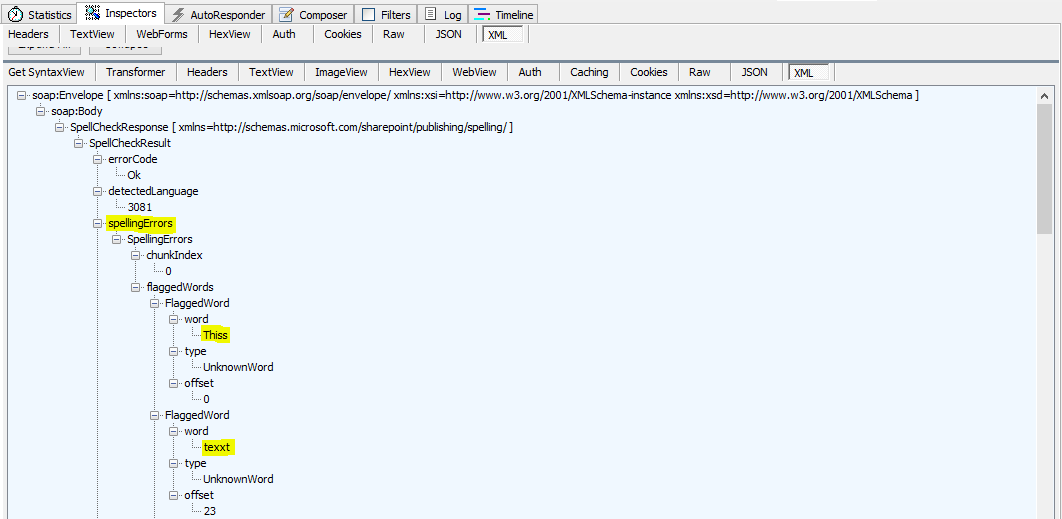
The screenshots below (taken from Fiddler and Chrome) show the request being sent and the data that is received back.

Request.


Response (showing the errors).


Response (showing the suggestions).


You can inspect the array of spelling suggestions and errors received back from the webservice by putting a break in the code.


Hpapy Spallnig!

References: