When versioning is turned on for a SharePoint list or document library, there are times when you may need to report on the number of list item versions, or delete versions that exceed a threshold. These scenarios can happen if;
1. Version limits (for the maximum number of major/minor versions) were not set, and the list has too many versions
2. Versions limits are being applied or reduced, and you need to retrospectively delete all the versions in a list that exceed the new threshold
3. You are performing an upgrade, and you want to prune the versions of pages in the pages library (on a publishing site)
4. You want to run a report to determine how many items in a list have more than "x" number of versions
An easy way to accomplish these tasks is to use PowerShell to iterate over a lists items, inspecting each items versions.
[Note] I've written a script that contains a number of functions for listing and deleting list item versions, and it can be downloaded from the Microsoft TechNet Gallery, here: List or Delete excess ListItem Versions in a SharePoint List or Document Library
[Note] I've written about this a few times before, and you can see the previous posts here:
Generating a list of items with/without major versions
Delete document or list item versions using PowerShell
Example 1: Listing the versions of all list items in the http://corporate/pages library
Breakdown:
1. Get the SPWeb that contains the list we want to insect
2. Get the SPList that we want to inspect from the SPWeb
3. Copy the SPListItemsCollection to a variable
4. Iterate over the SPListItemCollection, and list items that have more than 5 versions
$w = get-spweb "http://corporate"
$l = $w.Lists.TryGetList("Pages");
$items = $l.Items;
$f = $l.Fields["Check In Comment"];
$listType = $l.GetType().Name;
foreach($item in $items)
{
  $itemTitle = $item.Title;
  if($listType -eq "SPDocumentLibrary")
  {
    if($itemTitle -eq ""){$itemTitle = $item["Name"];}
  }
  if($item.Versions.Count -gt 0){
    $vtr = $item.Versions.Count;
    Write-Host "$itemTitle, has $vtr versions" -foregroundcolor Green;
  }
}
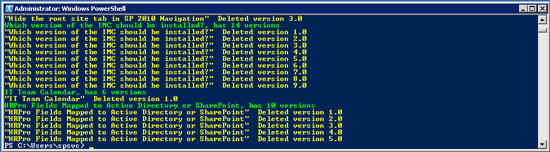
Listing the versions of all list items.
Example 2: Delete all versions in excess of 5 (ignoring minor versions)
$w = get-spweb "http://corporate"
$l = $w.Lists.TryGetList("Pages");
$items = $l.Items;
$f = $l.Fields["Check In Comment"];
$listType = $l.GetType().Name;
foreach($item in $items)
{
  $itemTitle = $item.Title;
  if($listType -eq "SPDocumentLibrary")
  {
    if($itemTitle -eq ""){$itemTitle = $item["Name"];}
  }
  if($item.Versions.Count -gt 5){
    $vtr = $item.Versions.Count;
    Write-Host "$itemTitle, has $vtr versions" -foregroundcolor Green;

    while($vtr -gt 5){
      $vtr--;
      [Microsoft.SharePoint.SPListItemVersion]$iv = $item.Versions[$vtr];
      $versionNumber = $iv.VersionLabel;
      if(!$iv.VersionLabel.EndsWith(".0"))
      {
        continue;
      }
      Write-Host "$itemTitle : Deleted version $versionNumber" -foregroundcolor Yellow;
      $iv.Delete();
    }
  }
}
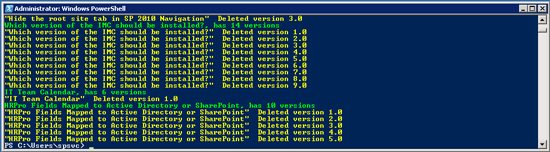
Delete all versions in excess of 5.
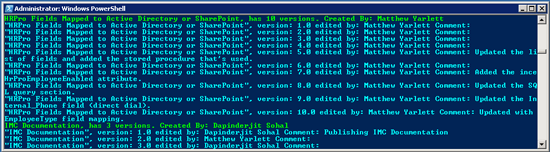
Example 3: A more advanced example, listing the versions of all list items in the http://corporate/pages library including the comments, item author and version author
1. Get the SPWeb that contains the list we want to insect
2. Get the SPList that we want to inspect from the SPWeb
3. Get a reference to the "Check In Comments" field. This field is present on Document Libraries and will be used later to the value of each versions Check In Comment.
3. Copy the SPListItemsCollection to a variable
4. Iterate over the SPListItemCollection, and list the version information, by using the SPListItem.Versions property
5. For each version, cast the object returned from SPListItem.Version[index] to a Microsoft.SharePoint.SPListItemVersion object.
6. Using the Microsoft.SharePoint.SPListItemVersion object, get the version label (version number), the version author and the version comment.
[Note] To get the version comment (for Document Libraries only), you need to use the GetVersionFromID method of the SPListItem.File.Versions collection. This returns an SPFileVersion object, which contains the Checkin comment field.
$w = get-spweb "http://corporate"
$l = $w.Lists.TryGetList("Pages");
$items = $l.Items;
$f = $l.Fields["Check In Comment"];
$listType = $l.GetType().Name;
foreach($item in $items)
{
  $itemTitle = $item.Title;
  if($listType -eq "SPDocumentLibrary")
  {
    if($itemTitle -eq ""){$itemTitle = $item["Name"];}
  }
  if($item.Versions.Count -gt 0){
    $vtr = $item.Versions.Count;
    $itemAuthor  = ($item.Fields["Created By"]).GetFieldValueAsText($item["Created By"]);
    Write-Host "$itemTitle, has $vtr versions. Created By: $itemAuthor" -foregroundcolor Green;

    while($vtr -gt 0){
      $vtr--;
      [Microsoft.SharePoint.SPListItemVersion]$iv = $item.Versions[$vtr];
      $versionNumber = $iv.VersionLabel;
      $versionAuthor = $iv.CreatedBy.User.DisplayName;
      $comment="";
      if($f -ne $null)
      {
        if($iv.IsCurrentVersion)
        {
          $comment = "Comment: "+($f.GetFieldValueAsText($item.Versions.GetVersionFromID($iv.VersionId)["Check In Comment"])).Replace("`r`n"," ").Replace("`n"," ");
        }
        else
        {
          $comment = "Comment: "+($f.GetFieldValueAsText($item.File.Versions.GetVersionFromID($iv.VersionId).CheckInComment)).Replace("`r`n"," ").Replace("`n"," ");
        }
      }
      Write-Host ([String]::Format("$itemTitle, version: $versionNumber edited by: $versionAuthor {0}", $comment)) -foregroundcolor Cyan;
    }
  }
}
List the versions of all list items including the comments, item author and version author.